How-to
How to Control Your Classic America Mini Split System with the Tuya Smart App
James S.May 1st 202511 min read
Key takeaways
- The post walks through using the Tuya Smart app with a Classic America mini split.
- It covers remote control, scheduling, and automation from the phone.
- Tuya is described as the app that also runs other smart-home devices on the same account.
Smart home technology has revolutionized how we interact with our appliances—and HVAC systems are no exception. If you own a Classic America mini split, you may be wondering how to integrate it with your smart home ecosystem. Enter the Tuya Smart App, a powerful and user-friendly platform that allows you to control a wide range of smart devices, including many mini split systems.
In this post, we’ll walk through how the Tuya app works, its compatibility with Classic America systems, and how to set it up for remote control, scheduling, and automation.
What Is the Tuya Smart App?
Tuya is a global IoT platform that powers smart devices across hundreds of brands. The Tuya Smart App—available on both iOS and Android—is a hub for controlling these devices. From smart plugs and bulbs to thermostats and mini splits, Tuya consolidates all your smart home devices into one app.
What makes Tuya stand out is its cloud-based platform, compatibility with Alexa and Google Assistant, and support for automation routines that can trigger actions based on time, location, or other device activity.
Is the Tuya App Compatible with Classic America Mini Splits?
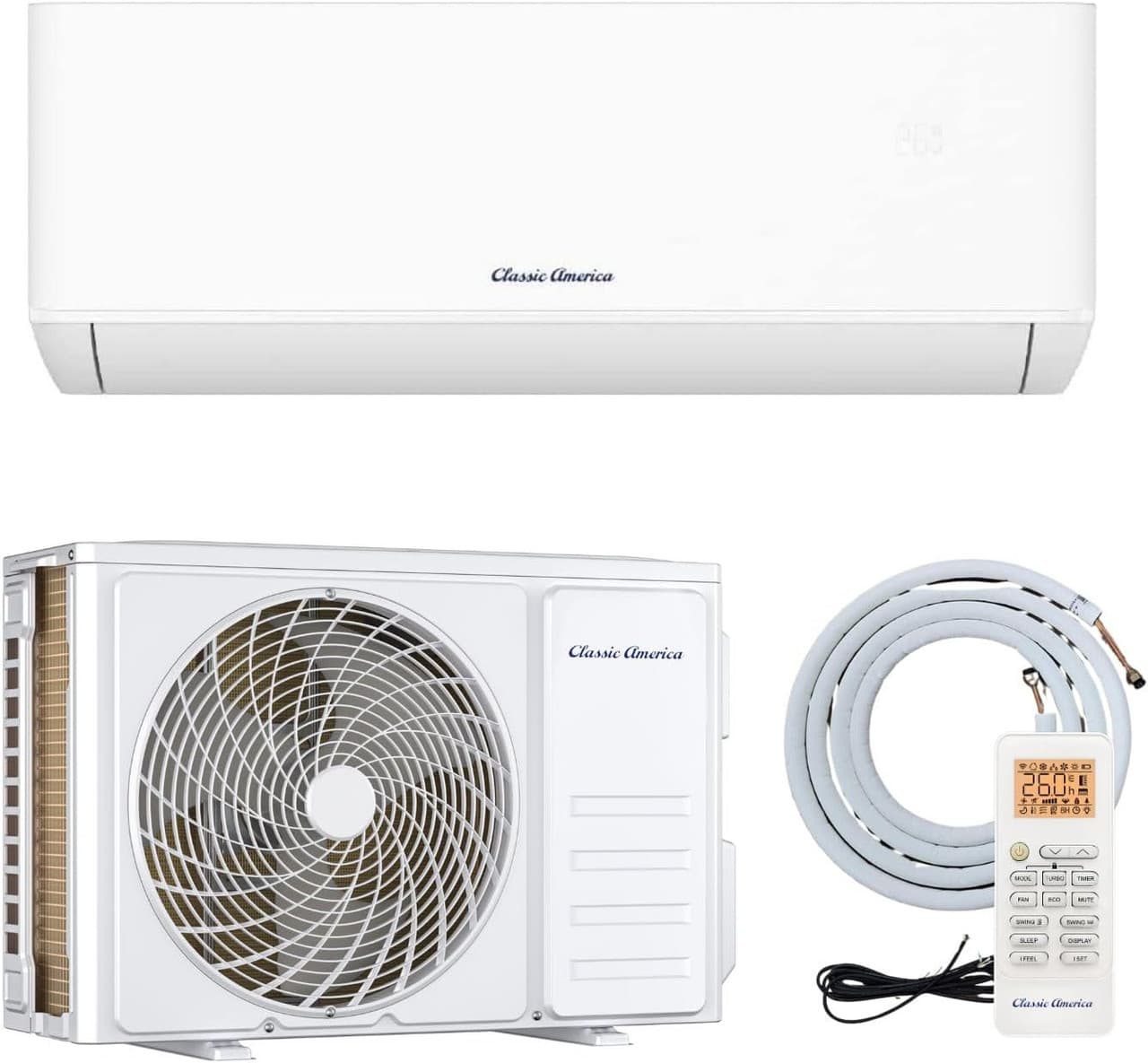
All Classic America mini split systems come with built-in Wi-Fi or a compatible IR remote control module that can be linked with the Tuya app. If your unit includes a Tuya-compatible module or supports IR remotes that Tuya can emulate, you’re in luck. The handset still works beside the app. A lost one is replaced by the KT-828 Gold universal mini split remote, and a room temperature and humidity readout is the KT-THR01 thermometer and humidity remote.
If you’re unsure, check your system’s manual or look for a model number on the controller or Wi-Fi module. You can also try adding the device through Tuya using the “Air Conditioner (Wi-Fi)” or “Remote Control” options.
How to Connect Your Mini Split to the Tuya App
- Download the App: Start by downloading the Tuya Smart or Smart Life app from the App Store or Google Play.
- Create an Account: Sign up for a Tuya account or log in using an existing one.
- Power Up Your Mini Split: Make sure the mini split is powered on and the Wi-Fi module is in pairing mode (usually indicated by a blinking light).
- Add Device: Tap the “+” icon in the app.
- Select "Small Home Appliances" → "Air Conditioner (Wi-Fi)" or search for your specific model.
- Follow the on-screen instructions to connect to your home Wi-Fi and complete setup.
- Name & Organize: Once connected, give your unit a name like “Living Room AC” and assign it to a room.
Key Features You Can Access with Tuya
Once connected, the Tuya app unlocks a range of smart features for your Classic America mini split:
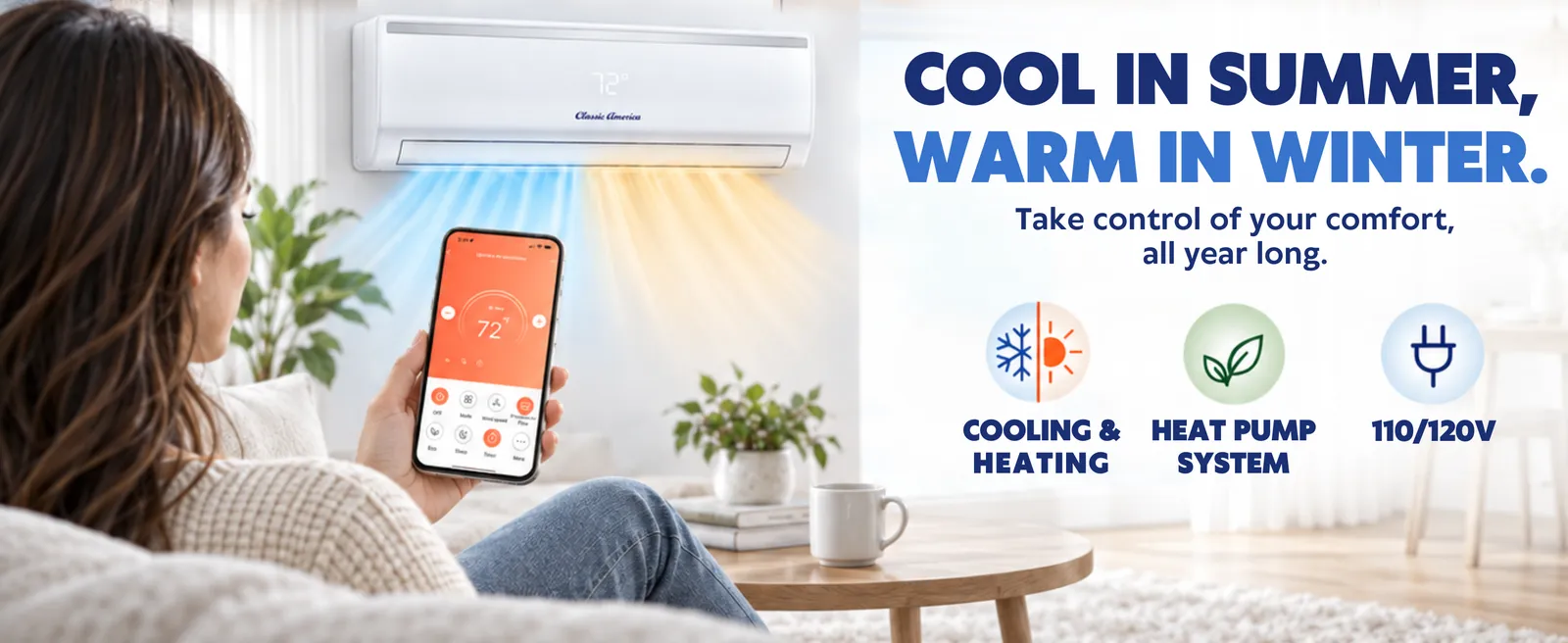
- Remote On/Off Control: Turn your AC on or off from anywhere using your phone.
- Mode Adjustment: Switch between cool, heat, fan, and auto modes.
- Temperature Settings: Adjust temperature in real time.
- Scheduling: Set daily or weekly schedules to automatically turn the unit on/off or adjust temperatures.
- Scenes & Automations: Combine your AC control with other Tuya devices. For example, set your mini split to turn on when a motion sensor detects entry.
Voice Control with Alexa and Google Assistant
Tuya also integrates seamlessly with Amazon Alexa and Google Assistant. After linking your Tuya account through the respective assistant apps, you can control your mini split using voice commands like:
- “Alexa, turn on the living room AC.”
- “Hey Google, set the bedroom temperature to 72 degrees.”
Final Thoughts
Integrating your Classic America mini split system with the Tuya app not only makes life more convenient but also helps reduce energy consumption with smarter control. Whether you're looking to cool your home before you arrive or automate your HVAC settings as part of a broader smart home routine, Tuya gives you powerful tools at your fingertips.
Controlling more than one mini split
Why Zone Control Matters
Before diving into setup, it’s worth reviewing why zoning is so valuable:
- Personalized Comfort: Different rooms often have different needs. Bedrooms, living rooms, and home offices can all run at different temperatures at the same time.
- Energy Savings: Instead of running one large system for the entire house, you only heat or cool the zones you’re actually using.
- Improved Airflow Management: Mini splits can run individually, allowing for quieter operation in rooms that aren’t in use.
By integrating your Classic America mini splits into zones, you get the best of both worlds: targeted comfort and smarter energy use.
Step 1: Ensure Each Mini Split Is Tuya-Compatible
Most Classic America mini split units feature a Wi-Fi module or can accept a Tuya-compatible IR controller. To get started:
- Verify Your Model: Check that your mini split supports Wi-Fi control or that you can add a Tuya-approved IR receiver (sold separately).
- Install the Wi-Fi/IR Module: Follow the manufacturer’s instructions to install and power up the module so it can connect to your home network.
- Download the Tuya App: Available on iOS and Android under “Tuya Smart” or “Smart Life.”
Step 2: Add Each Mini Split to the Tuya App
Once you have every mini split’s Wi-Fi or IR module ready:
- Open Tuya Smart and log in (or create an account).
- Tap the “+ Add Device” button in the top right corner.
- Select “Air Conditioner (Wi-Fi)” (or “Remote Control” if using an IR module).
- Put the mini split’s Wi-Fi/IR receiver into pairing mode (usually indicated by a blinking light).
- Follow the on-screen steps to connect the unit to your home Wi-Fi network.
- Assign each device a descriptive name (e.g., “Master Bedroom AC,” “Upstairs Office,” “Garage Unit”).
Repeat these steps for every Classic America mini split in your home until each one appears as a separate entity in the Tuya app.
Step 3: Create Zones in the Tuya App
Now that all mini splits are connected, let’s group them into zones:
- From the Tuya home screen, tap the “Groups” tab (sometimes labeled “Rooms” or “Scenes,” depending on your app version).
- Select “Create Group” or “Add Group/Room.”
- Give your zone a name that makes sense—like “Upstairs,” “Downstairs Living Area,” or “Guest Wing.”
- Check the box next to each mini split that belongs to this zone. For example, if “Master Bedroom AC” and “Guest Bedroom AC” are on the same floor, add them both to the “Upstairs Zone.”
- Save the group. Now you’ll see a single tile representing that zone, alongside individual units.
You can create as many zones as you need—one for each floor, wing, or specific area (like “Nursery + Playroom” or “Home Gym + Office”).
Step 4: Customize Temperature Settings per Zone
Once your zones are defined, controlling multiple mini splits simultaneously becomes easy:
- Tap a Zone Tile: Changing the temperature in that tile will adjust every mini split in that zone to the same target.
- Mode Synchronization: You can switch the entire zone between Cool, Heat, Fan, or Auto with one tap, rather than toggling each mini split individually.
- Fan Speed & Swing: Some homes benefit from setting the “Downstairs Zone” to a higher fan speed during summer afternoons, while the “Upstairs Zone” stays on low in the evening. The Tuya app lets you apply those settings to the entire group at once.
These grouped settings reduce repetitive tasks and guarantee consistent comfort throughout each zone.
Step 5: Implement Automation and Scheduling
A true smart-home experience comes when your zones operate on schedules and automated triggers:
- Tap “Smart” (or “Automation”) in the menu.
- Select “Add Automation” and choose your trigger—time-based, temperature-based, or even linked to other smart devices.
- For example: Wake-Up Routine: At 6:30 AM, turn on the “Master Bedroom Zone” to 70°F and start the “Downstairs Living Area Zone” at 68°F, so the house is comfortable by the time you have breakfast.
- Away Mode: When your phone’s location indicates no one is home, set every zone to an energy-saving 78°F during the cooling season.
- Humidity-Based Trigger: If you have a Tuya-compatible humidity sensor in the basement, automatically start the “Basement Zone” mini split at 75°F when humidity exceeds 60%.
These automations ensure reduced energy costs, fewer manual adjustments, and a consistent environment tailored to your lifestyle.
Step 6: Voice Control with Alexa or Google Assistant
With your Classic America mini splits zoned and automated through Tuya, you can now link Tuya to Amazon Alexa or Google Assistant for voice control:
- In Alexa: Open the Alexa app → Skills & Games.
- Search for “Tuya Smart” (or “Smart Life”).
- Enable the skill and log in with your Tuya credentials.
- Discover devices. Alexa will find your zones and individual units.
- “Alexa, set the Upstairs Zone to 72 degrees.”
- “Alexa, turn off the Downstairs Living Area.”
In Google Home:
- Open the Google Home app → Add → Set up device → Works with Google.
- Search “Tuya Smart” (or “Smart Life”) and link your account.
- Assign each zone to a room in Google Home for intuitive voice commands.
3. How to Use the Tuya Smart App to Save Electricity
By taking advantage of Tuya’s smart features, you can significantly reduce energy waste.
A. Set Smart Schedules
One of the best ways to save energy is by setting up automatic schedules.
? Workday Routine: Program the AC to turn off when you leave for work and on 30 minutes before you return.
? Nighttime Efficiency: Set a higher temperature while you sleep to prevent excessive cooling.
? Weekend Adjustments: If your routine changes on weekends, adjust the schedule accordingly to avoid unnecessary cooling.
B. Use Geofencing for Automated Control
Tuya’s geofencing feature detects your phone’s location and adjusts the mini split automatically.
- When You Leave Home: The AC turns off or shifts to energy-saving mode.
- When You’re Nearby: The AC turns on before you arrive, ensuring a comfortable temperature without wasting energy.
This ensures that your mini split never runs when the house is empty.
C. Adjust Temperature Settings for Maximum Efficiency
Keeping your mini split at an optimal temperature can result in significant energy savings.
?️ Summer: Set to 78°F (26°C) when home and 85°F (29°C) when away.
? Winter (Heating Mode): Set to 68°F (20°C) while home and lower when away.
Since Tuya allows remote temperature adjustments, you can tweak settings anytime based on the weather or your comfort needs.
D. Enable Eco Mode for Lower Energy Consumption
Many Classic America mini splits include an Eco Mode or Energy Saver Mode. When activated via the Tuya Smart App, the AC adjusts cooling cycles automatically to use less power while maintaining comfort.
E. Monitor Energy Usage in Real Time
If your mini split or WiFi adapter supports energy monitoring, Tuya can help you track electricity consumption.
? Identify peak usage times and adjust settings accordingly.
? Set consumption alerts to prevent excessive energy use.
? Optimize scheduling based on actual power data.
By keeping an eye on power usage, you can make informed decisions to lower electricity bills.
F. Use Voice Commands for Quick Adjustments
Tuya integrates with Amazon Alexa & Google Assistant, allowing you to control your mini split using voice commands.
?️ “Alexa, set the AC to 76 degrees.”
?️ “Hey Google, turn off the mini split.”
?️ “Alexa, enable Eco Mode.”
Voice control reduces manual adjustments, ensuring that your AC runs efficiently without unnecessary energy consumption.
4. Additional Tips to Maximize Savings
Besides using the Tuya Smart App, you can further reduce energy costs with these simple tips:
✔ Use Ceiling Fans – Helps circulate cool air, reducing AC workload.
✔ Keep Filters Clean – A dirty filter restricts airflow, increasing power usage.
✔ Seal Windows & Doors – Prevents cool air from escaping, improving efficiency.
✔ Use Curtains/Blinds – Blocks direct sunlight, reducing indoor heat.
✔ Close Off Unused Rooms – If possible, cool only occupied areas.
A mini split and central HVAC in the same app
Why Combine HVAC and Mini Split Control in Tuya?
Classic America mini splits are ideal for specific rooms, additions, or garages—anywhere your central HVAC doesn’t quite reach or isn't efficient. But managing two climate systems separately can lead to inefficiencies, like heating one space while cooling another. The Tuya app helps solve this by letting you control both systems from a single platform, offering:
- Unified control through your smartphone
- Scheduling and automation for temperature consistency
- Energy savings through optimized usage
- Voice control with Alexa or Google Assistant
What You'll Need
To make this setup work, you’ll need:
- A Classic America mini split with Tuya-compatible Wi-Fi or IR control.
- A smart thermostat or HVAC controller for your central HVAC that is Tuya-compatible.
- The Tuya Smart or Smart Life app, available on iOS and Android.
- A stable Wi-Fi network in your home.
Step-by-Step: Connecting Both Systems to Tuya
- Add the Mini Split Open the Tuya app and tap “Add Device.”
- Select “Air Conditioner (Wi-Fi)” or “Remote Control” depending on your mini split's connection method.
- Follow the pairing instructions. Once added, you’ll be able to adjust modes, temperature, fan speed, and more.
- Connect Your HVAC Smart Thermostat If your thermostat is Tuya-compatible (e.g., Moes, Beca, or others), follow a similar process:
- Tap “Add Device” > “Thermostat (Wi-Fi)” and follow the setup steps.
- You’ll now be able to control heating, cooling, schedules, and system modes from the same app.
- Organize by Rooms or Zones Assign each device to a specific room or zone in the Tuya app for easy access.
Optimizing Your Systems to Work Together
Once both systems are connected, use Tuya’s “Smart Automation” features to make them work together intelligently:
- Zone-Based Climate Control Set the central HVAC to run during peak hours and the mini split to kick in during early morning or late night for individual room control.
Temperature Thresholds
- Create automations where the mini split only activates if its room exceeds a certain temperature while the main system is idle.
Vacation or Away Modes
- Turn off the central system when you’re away, but keep the mini split on in key areas like a pet room or server closet.
Energy Optimization
- Use Tuya’s built-in timers and schedules to reduce overlap and lower energy consumption—cool only the rooms you're using, when you're using them.
Voice Control and Unified Management
With both systems in Tuya, you can now control them using Alexa or Google Assistant:
- “Alexa, set the living room mini split to cool.”
- “Hey Google, increase the house thermostat by 2 degrees.”
You’ll also benefit from Tuya’s smart scenes—create a “Comfort Mode” scene that adjusts both systems to your preferred evening settings with one tap.
Scenes, energy monitoring, and alerts
Tuya enables users to create smart automations and scenes that enhance home comfort. Some examples include:
- Temperature Triggers: If the room temperature rises above 78°F, the AC turns on automatically.
- Geofencing: The AC can switch on when you arrive home and turn off when you leave.
- Multi-Device Integration: Sync your mini split with other smart devices like fans, humidifiers, or dehumidifiers for a complete climate control system.
Many Tuya-compatible mini split systems offer energy monitoring features, allowing users to track their AC’s energy consumption. By analyzing usage patterns, you can make adjustments to reduce energy waste and lower your electricity bills.
The Tuya app can send real-time alerts for:
- Filter replacement reminders.
- System malfunctions or errors.
- Unusual power consumption trends.
This helps ensure your Classic America mini split remains in optimal condition, reducing the chances of unexpected breakdowns.
If you want automations beyond the Tuya app, the companion guide is how to control a Classic America mini split with Home Assistant and the Tuya app.